Back to Templates


NocoDB - Clone Tables to Another Base
What Is This?
This workflow clones one or more NocoDB tables - including their structure and optionally their data - into a destination base, using the NocoDB v3 API directly. Each copied table is timestamped to avoid naming collisions.
It is a practical utility for creating table backups, spinning up staging environments, or migrating data between NocoDB bases without any manual export/import steps.
Who Is It For?
Built for developers, data engineers, and NocoDB power users who manage multiple bases and need a reliable, repeatable way to duplicate table structures and content programmatically.
Useful any time you want to snapshot a table before a risky migration, clone a template table into a new project base, or move data between environments (development → staging → production) without touching the NocoDB UI.
How Does It Work?
The workflow runs on manual trigger and completes in two stages:
1. Fetch Metadata & Create Table Copies For each table ID listed in the Config node, the workflow calls the NocoDB Meta API to retrieve full table metadata - field names, types, and options. It then creates a new table in the destination base using that schema, with a timestamp appended to the name (e.g. Invoices - Copy 2025-04-28 14:32:00).
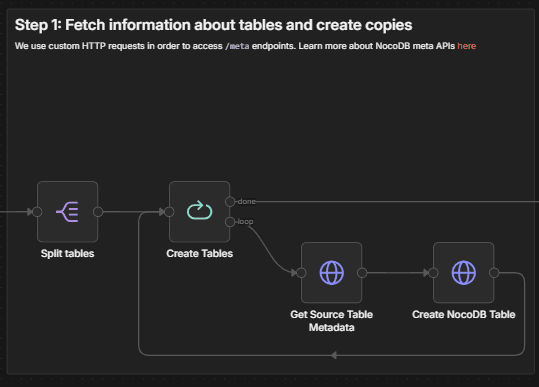
Relation fields are intentionally excluded from the copy: Links, Lookup, LinkToAnotherRecord, ForeignKey, and ID fields are filtered out to avoid broken references in the new table. All other field types - text, number, date, select, checkbox, etc. - are carried over as-is.
2. Copy Rows (Optional) If copy_rows is set to true in the Config node, the workflow fetches all records from each source table and bulk-inserts them into the newly created copy. Only non-relational fields are transferred, matching the schema created in step one.
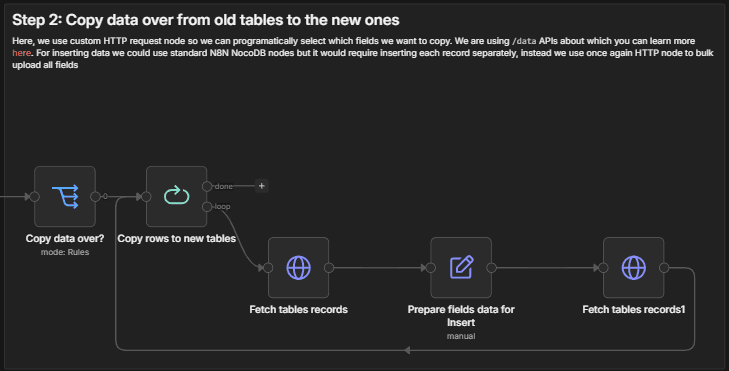
If copy_rows is false, the workflow stops after table creation - giving you an empty structural copy ready to populate.
How To Set It Up?
Prerequisites:
- An active n8n instance (self-hosted or cloud)
- A NocoDB instance (self-hosted or cloud) with API token access
- At least one existing NocoDB base with tables to copy
Required Configuration:
Open the Config node and set the following fields:
base_url- your NocoDB instance URL (e.g.https://app.nocodb.comfor cloud, or your self-hosted address)source_tables- JSON array of table IDs to copy (e.g.["table1", "table2"]); find table IDs in the NocoDB URL or via the Meta APIsource_base- ID of the base where the source tables livedestination_base- ID of the base where copies should be created (can be the same as source)copy_rows- set totrueto copy all row data, orfalseto copy structure only
Credentials Setup:
Connect your NocoDB API token credential to all HTTP Request nodes in the workflow. The same token is used for both Meta API calls (table creation) and Data API calls (record fetch and insert).
Finding Base and Table IDs:
You can see Base and Table ID after clicking on Base or Table. Optionally Base IDs and table IDs are visible in the NocoDB URL when browsing a table: https://your-noco-instance/dashboard/#/base/{baseId}/table/{tableId}. They can also be retrieved via the NocoDB Meta API.
What's More?
Bulk Insert for Speed Rather than inserting records one by one, the workflow uses a single bulk POST request per table to the NocoDB Data API. This keeps execution time short regardless of row count and prevents hitting rate limits.
Safe Relation Handling Relational fields (Links, Lookup, ForeignKey, LinkToAnotherRecord) are filtered out automatically during both table creation and data copy. This prevents errors caused by referencing tables or rows that don't exist in the destination base.
Multi-Table Support List as many source table IDs as needed in the config array. The workflow processes them sequentially using a SplitInBatches loop, creating and populating each copy in turn.
Structure-Only Mode Setting copy_rows to false skips all data transfer and stops after creating the empty table schema - ideal for templating workflows where you want a clean slate with the right column structure.
Happy hacking! For custom n8n workflow solutions or dedicated software development, reach out at [email protected] or visit sailingbyte.com.